
Free AI Interior Design Tools: 8 Best Picks Tested (2026)
Redesigning a room no longer needs a $75/hr designer or expensive software. A wave of free AI interior design tools now let you upload a photo of your space, pick a style, and get a photorealistic makeover in under a minute. The short answer: yes, several genuinely free tools exist — RoomGPT, Spacely AI, Interior AI, and Homestyler lead the pack, though each caps free use with credits or daily render limits.
This guide tests 8 of the most popular free tools, spells out exactly what their free tiers include, and shows how to get the best results without paying.
How Free AI Interior Design Tools Work
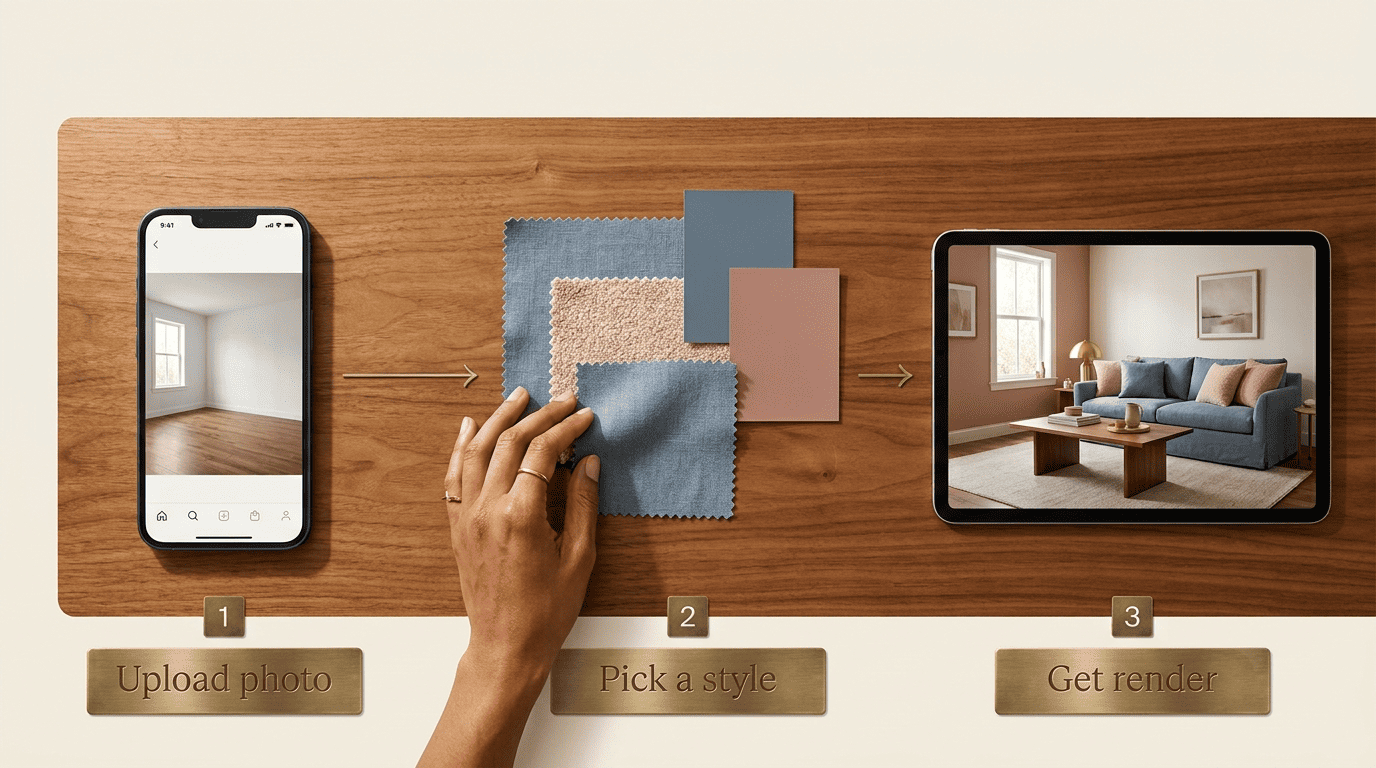
Almost every free AI interior design generator follows the same basic loop, and once you’ve used one you can pick up the rest in minutes. The workflow barely varies between apps, which makes it easy to compare them fairly on the same photo.
The upload-style-render workflow
Almost every tool follows the same 3-4 steps: upload a photo of your real room (or a blank floor plan), pick the room type, choose a style — Scandinavian, modern, boho, mid-century — then generate. Interior AI’s ArchDiffusion engine renders up to 8K resolution in roughly 15 seconds; Spacely AI returns renders in under 60 seconds. Neither asks for measurements or a floor plan to produce a first pass.
What the AI is actually doing
These tools run generative diffusion models trained on architectural and interior imagery — the same broad class of AI behind general-purpose image generators. According to Wikipedia’s overview of diffusion models, this technique works by learning to reverse a noise process, gradually turning random noise into a coherent image conditioned on the input. In practice, the AI keeps the room’s geometry — walls, windows, ceiling height — largely intact and re-styles the surfaces, furniture, and finishes on top of it. Reviewers commonly test tools by feeding the same empty-room photo and the same prompt — «Scandinavian living room» — into each app so the outputs can be judged side by side rather than on cherry-picked examples.
Are AI Interior Design Tools Really Free? (Free Tiers Explained)
«Free» gets used loosely in this category, so it’s worth separating tools that are free-to-start from ones that only feel free until the first paywall.
The honest answer: freemium, not free-forever
Most tools in this space are freemium — a working free tier sits on top of a paid upgrade path, with subscriptions across the market ranging from about $9.99 to $159 per month depending on the app and tier. A handful are truly free to start with no credit card required: Spacely AI, Interior AI (five renders per day), and Homestyler. Others are credit-limited from the first use — REimagine Home gives five free credits, and Canva’s AI Interior Styler requires purchased credits even for a Canva Pro account. Free tiers typically add a watermark, cap output resolution around 1K, or both, and lifting either restriction is usually what the paid plan is actually selling.
Free-tier comparison table
| Tool | Free tier | Limit | Credit card needed? |
|---|---|---|---|
| RoomGPT | Free redesigns | Watermarked output | No |
| Spacely AI | Free, unlimited style | No hard cap | No |
| Interior AI (mnml.ai) | 5 renders/day | Daily reset | No |
| Homestyler | Unlimited 1K renders + 300K+ furniture models | Resolution capped at 1K | No |
| Planner 5D | Free 2D/3D planning | Export limits | No |
| REimagine Home | 5 free credits | One-time credit pool | No |
| Canva AI Interior Styler | Free access, paid generations | Requires purchased credits | Depends on plan |
| Home Visualizer AI | Free trial | Trial-length limited | Varies |
The 8 Best Free AI Interior Design Tools Tested
Each of these tools does one thing especially well, so the «best» pick usually depends on whether you want speed, render quality, layout planning, or paint testing.
| Tool | Best for | Starting paid price |
|---|---|---|
| RoomGPT | Quick one-photo redesigns | Paid tier removes watermark |
| Spacely AI | Realistic, client-ready renders | Custom pricing |
| Interior AI (mnml.ai) | Highest render quality (8K) | Paid plans beyond 5/day |
| Homestyler | Floor planning + furniture | $19.90/mo for 4K |
| Planner 5D | Full 2D/3D room planning | $4.99/mo |
| REimagine Home | Interiors + exteriors/landscaping | $14/mo |
| Canva AI Interior Styler | Teams already using Canva | Credit-based |
| Home Visualizer AI | Paint and color testing | Varies |
RoomGPT — best for a quick one-photo redesign. With more than 4 million users, RoomGPT is built around a single action: upload one photo, pick a style, get a redesign. It offers around 25 style descriptors to choose from. Free redesigns come with a watermark; the paid tier removes both the watermark and the daily limits. It’s the fastest entry point for anyone who wants to see one room reimagined without learning a new interface.
Spacely AI — best free tier for realistic renders. Spacely AI has built a base of over 580,000 users across 50+ countries, and its free tier doesn’t require a credit card. Renders return in under 60 seconds and the results lean photorealistic and client-ready rather than stylized. It also ships a free extension for SketchUp, the 3D modeling software widely used by architects and designers, and placed third in the 2024 SketchUp Global Innovation Challenge — a signal that professional designers, not just hobbyists, are using it.
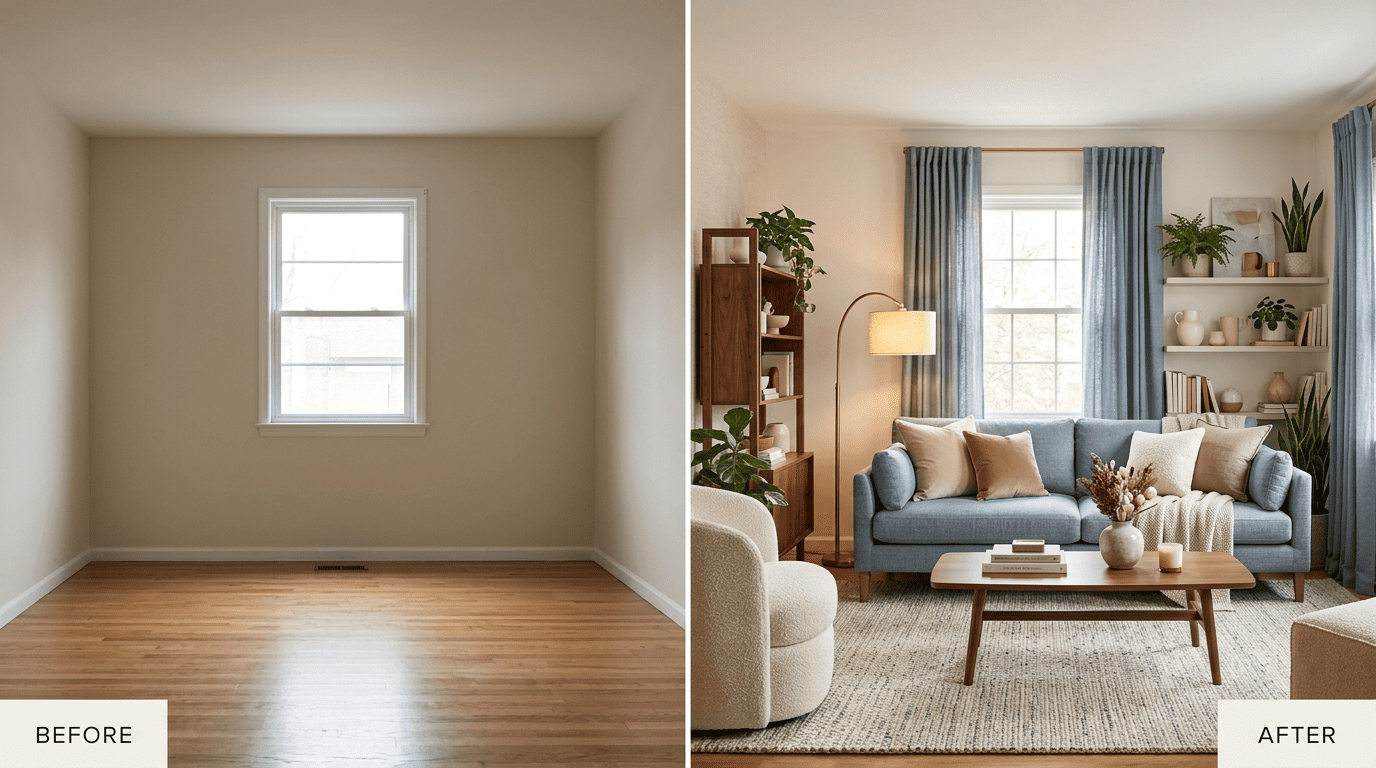
Interior AI (mnml.ai) — best render quality. Interior AI runs on its own ArchDiffusion engine, producing images up to 8K resolution in about 15 seconds, across more than 20 styles. Its 2 million-plus user base gets five free renders a day with no card required. When output fidelity matters more than speed or volume, this is the one to pick.
Homestyler — best free floor planning + furniture. Homestyler has the most generous free tier of the group: unlimited 1K renders plus access to over 300,000 real-brand 3D furniture models, all at no cost. It’s built more for planning a layout than for restyling a single photo, which makes it a natural complement to the render-focused tools above. A layout-first tool like this pairs well with a project like AI interior design for home offices, where desk placement and storage matter as much as the finished look.
Planner 5D — best for full 2D/3D room planning. With a base above 120 million users, Planner 5D lets you build floor plans in both 2D and 3D for free, with paid plans starting at $4.99/mo for extra features. It’s the strongest option here for measuring and arranging an entire room rather than just re-skinning one photo — useful groundwork before tackling something like AI interior design for dining rooms, where table size and traffic flow drive the layout.
REimagine Home — best for exteriors + landscaping. REimagine Home gives five free credits and covers more ground than most competitors, extending past interiors to exterior facades, patios, lawns, and landscaping. Paid plans start at $14/mo. It’s the right pick when a project spills outside a single room.
Canva AI Interior Styler — best if you already use Canva. This one is free to access inside Canva, but each generation draws on purchased credits rather than a straightforward free quota. For anyone who already designs in Canva daily, folding interior renders into the same workflow can outweigh the credit cost.
Home Visualizer AI — best for paint + color visualization. Home Visualizer AI has processed more than 1 million images for over 500,000 users, and its free tools include a Palette Generator and a Paint Finish Selector that pull in real paint brands like Behr, Sherwin-Williams, and Benjamin Moore. It’s less about full-room redesign and more about answering one specific question: what will this wall color actually look like?
Limitations of Free AI Interior Design Tools
Free tiers are genuinely useful for early-stage ideas, but they hold back the features that make a render usable for an actual purchase decision.
What free tiers hold back
Watermarks, lower resolution — often capped around 1K — daily or credit-based caps, and a narrower style selection are the standard trade-offs on a free plan. Paid tiers typically unlock:
- HD or 4K output instead of capped resolution
- Batch generation across multiple rooms or styles at once
- Commercial usage rights for listings, portfolios, or client work
- Removal of the watermark stamped on free renders
- Higher or unlimited daily/credit caps
Where the AI still struggles
Generative tools can still hallucinate — producing furniture that doesn’t fit the room’s proportions or geometry that doesn’t match the original photo. They also don’t work from real measurements, so a rendered layout can look great and still be physically impossible to furnish. And none of them can order the products shown in the render for you. A free AI room design app is a strong starting point for direction and mood, but it still needs a human eye to check feasibility before anything gets bought or built.
A quick step-by-step for your first free render
- Take a well-lit, straight-on photo of the room, ideally with as little furniture and clutter as possible.
- Pick a tool based on your goal — RoomGPT for speed, Interior AI for quality, Homestyler for layout and furniture.
- Upload the photo and select the room type accurately (living room, bedroom, kitchen, etc.).
- Choose a specific style and name key materials in any prompt field — for example, «warm Scandinavian living room, walnut wood, linen.»
- Generate two or three variations rather than accepting the first result.
- Compare renders against the room’s real dimensions before treating anything as final.
- Note which elements (color, layout, furniture) came from which tool if you plan to stack multiple apps.
How to Get the Best Results for Free
A little prep before you upload makes a bigger difference to output quality than which tool you pick.
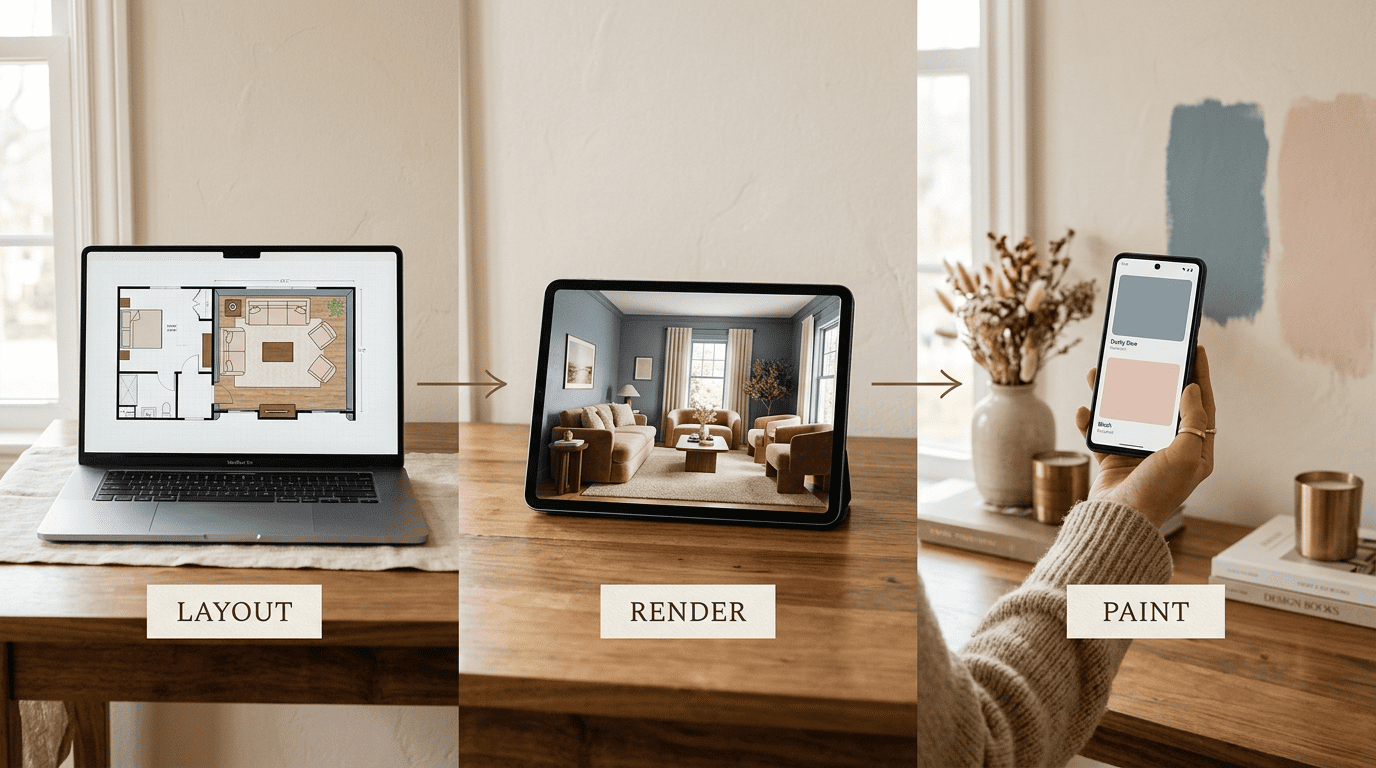
Photo and prompt tips
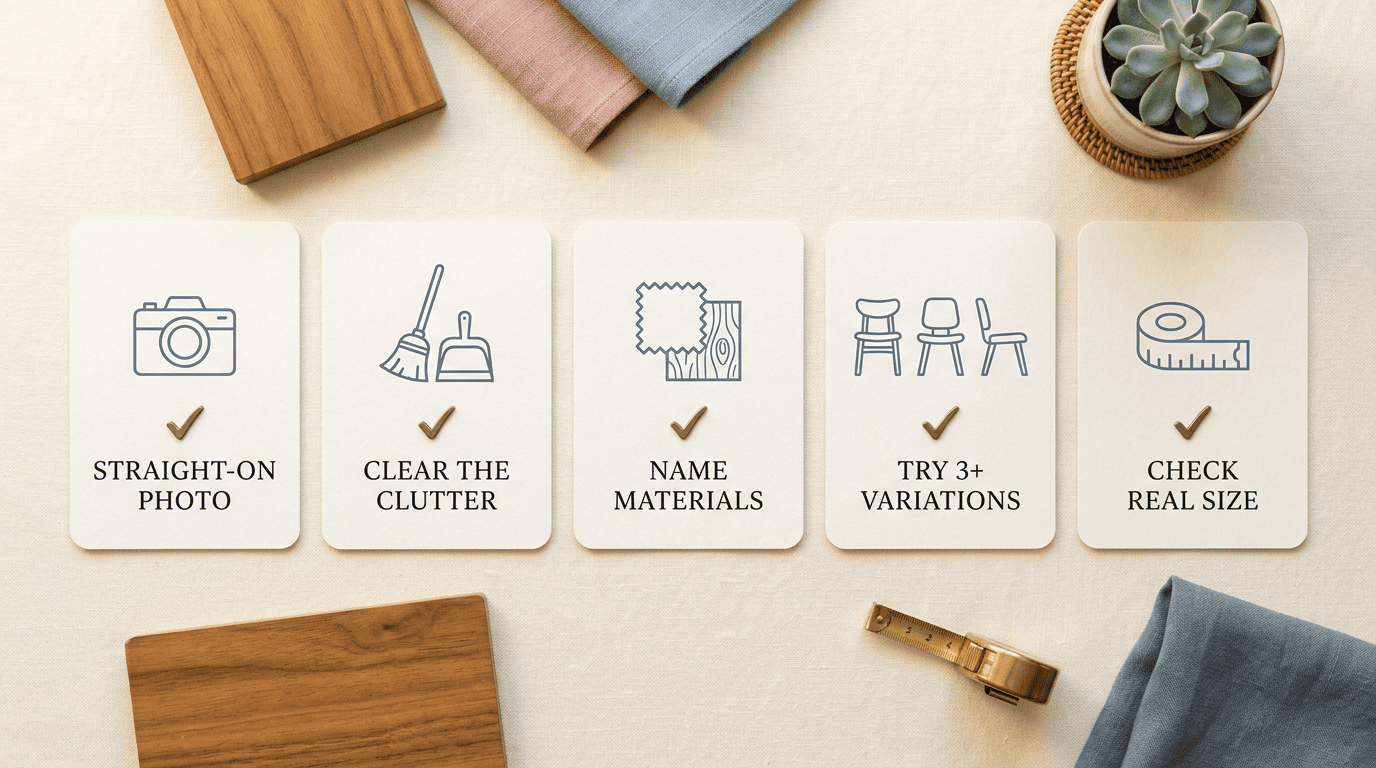
Use a well-lit, straight-on photo of the empty-ish room — busy, cluttered shots give the model less clean geometry to work with. Name the style and key materials directly in the prompt, such as «warm Scandinavian living room, walnut wood, linen,» rather than a single style word. Generate several variations before settling on one, and don’t hesitate to combine tools — render the mood in one app, then plan the exact layout in another. A few habits make a consistent difference:
- Shoot the room straight-on, not at an angle, so the AI reads the geometry correctly
- Clear obvious clutter before uploading — fewer objects means fewer hallucinated ones
- Name specific materials and colors in the style prompt, not just a style label
- Generate 3+ variations per room instead of accepting the first output
- Save the render alongside the room’s real measurements before making any purchase decisions
Stacking free tiers
Because each tool’s free tier is capped differently, stacking them covers more ground than relying on one app alone. A practical combination for a full room, using nothing but free tiers:
- Homestyler for the floor plan and furniture placement
- Interior AI for the highest-quality styled render
- Home Visualizer AI for testing wall paint and finishes
Run this way, it’s possible to cover most of a room’s redesign — from floor plan to final wall color — without paying for a single subscription.
In machine learning, diffusion models, also known as diffusion-based generative models or score-based generative models, are a class of latent variable generative models.
Wikipedia, Diffusion model
That’s the category of model behind every render in this guide — it also explains why results can look convincing yet occasionally invent a piece of furniture, a doorway, or a shadow that was never in the original photo.